User guide
The essentials, section by section. Menu paths are written as Menu ▸ Item.
1. Getting started
DxDozer runs on Windows 11 and on macOS 14 Sonoma or later (Apple Silicon). It is free; the yearly subscription is optional.
First run
- Your station. Enter your callsign and locator (or latitude/longitude; the other is calculated). This creates your first logbook.
- DxDozer account. Create one, tick I already have an account to sign in, or choose Skip for now.
- Getting the data. DxDozer downloads the DXCC list, the band plan and the LoTW/OQRS users. It takes a few minutes.
The main window
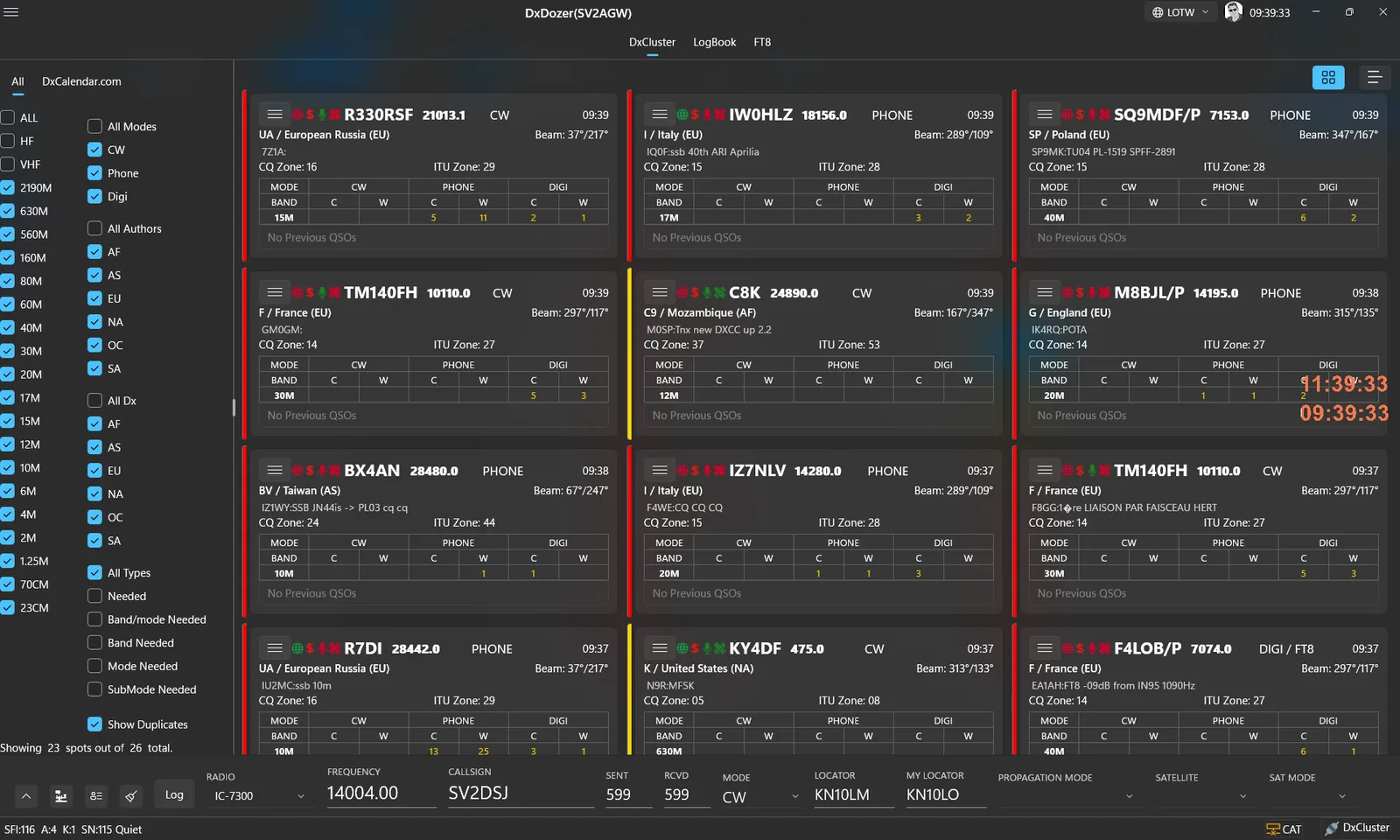
- The tabs at the top switch between DxCluster, LogBook and FT8.
- The QSO bar at the bottom is always there for logging.
- The footer shows solar data and the CAT and DxCluster connection buttons.
2. Logbooks
Keep one logbook per callsign. All are in the LogBook menu:
- New Logbook: callsign, owner, station location.
- LogBook Selection: switch to another logbook.
- LogBook Properties: edit the current logbook and its LoTW and ClubLog logins.
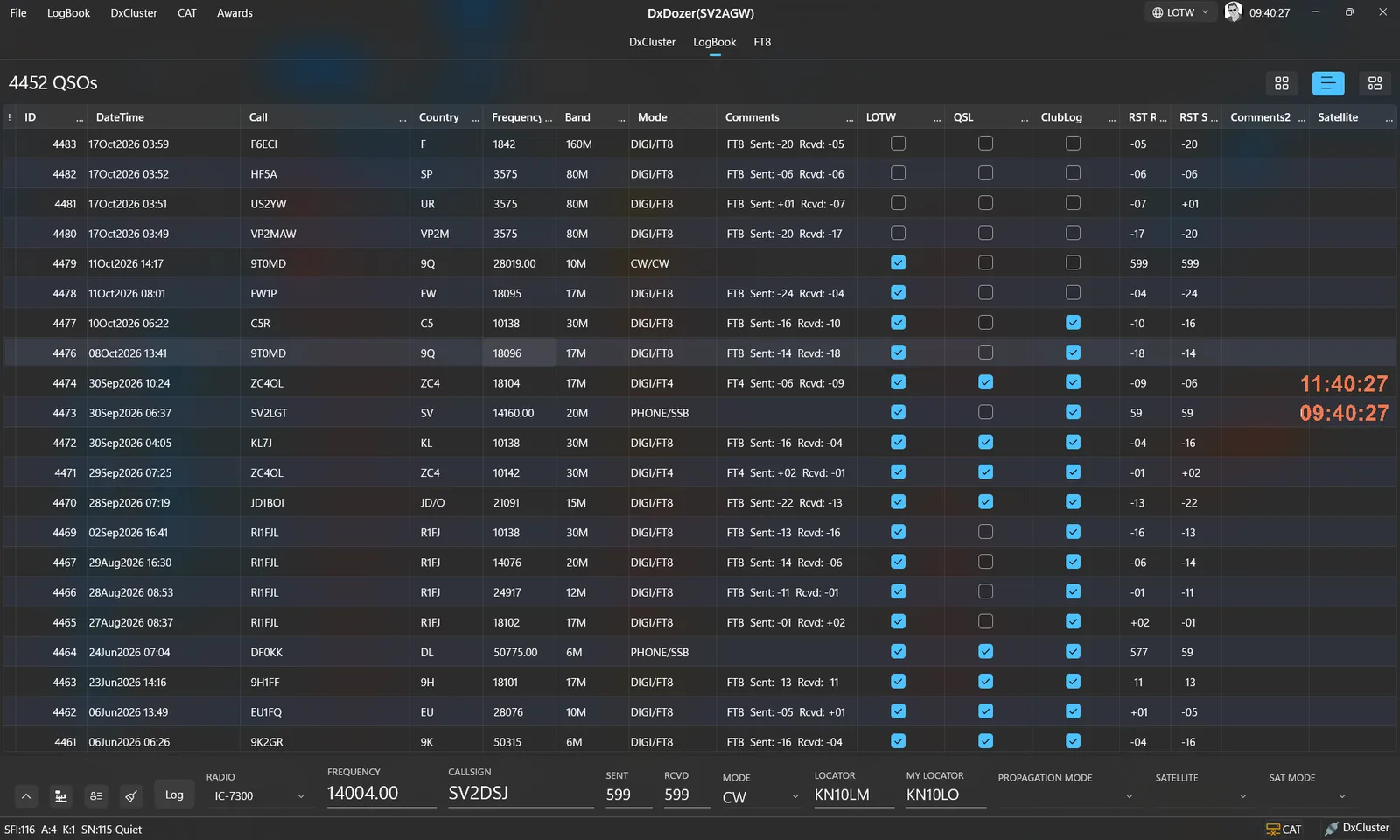
The LogBook tab lists your QSOs as a list or a grid. Right-click a QSO to edit or delete it, or to check its DXCC status, QRZ, map, ClubLog and LoTW/OQRS.
In the grid, double-click a cell to change it; Return saves, Esc cancels. Mode, dates, propagation, satellite, OTA and contest use the same lists as the QSO editor. Changing the frequency also sets the band. Checkboxes save with one click, and column widths are remembered.
3. Logging QSOs
- Type the callsign in the QSO bar and press Return. Country, beam and worked-before appear.
- Frequency and mode come from the radio when CAT is on; otherwise type them.
- Click Log.
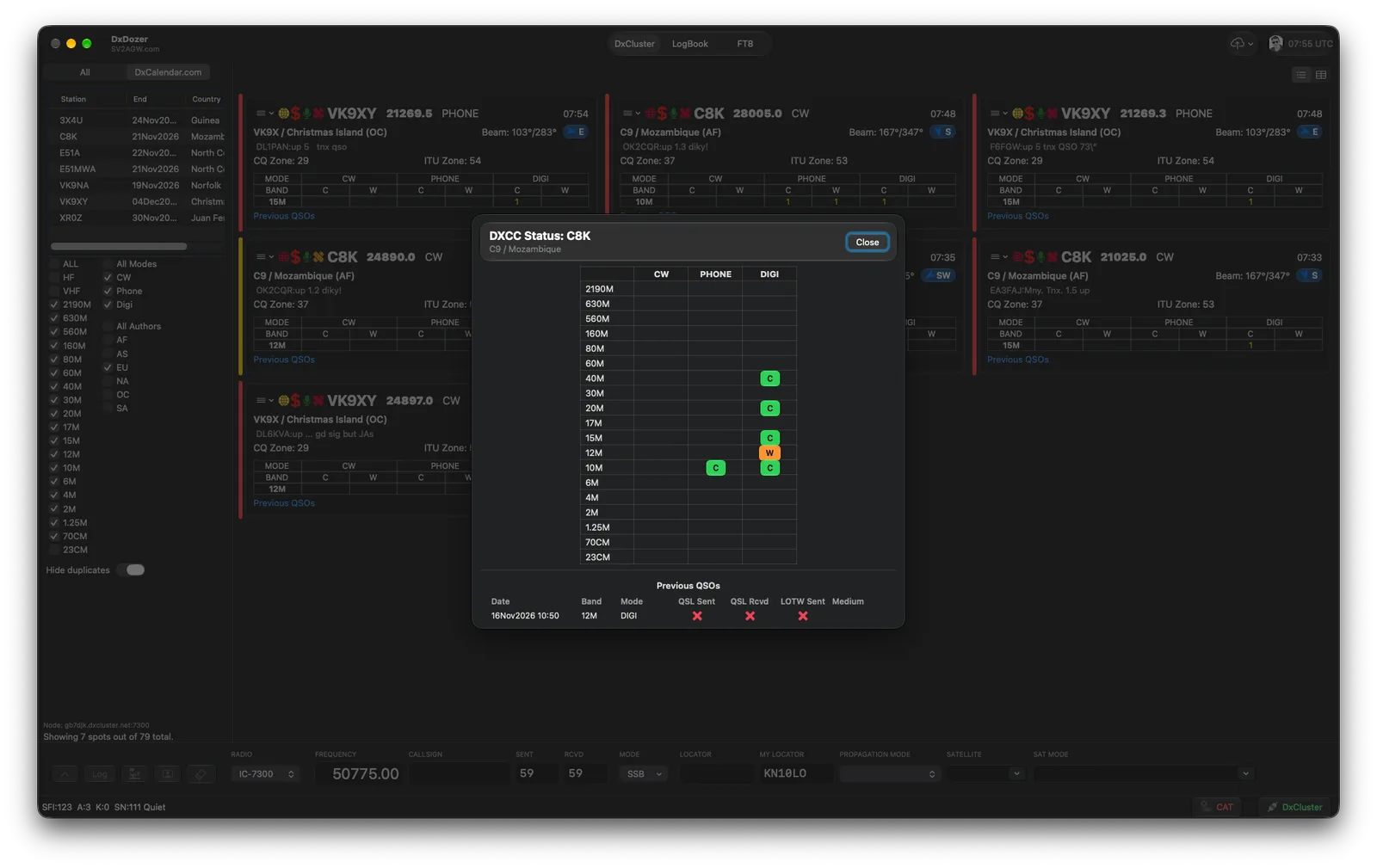
The blue line under the bar shows the country's status; click it for the full DXCC status.
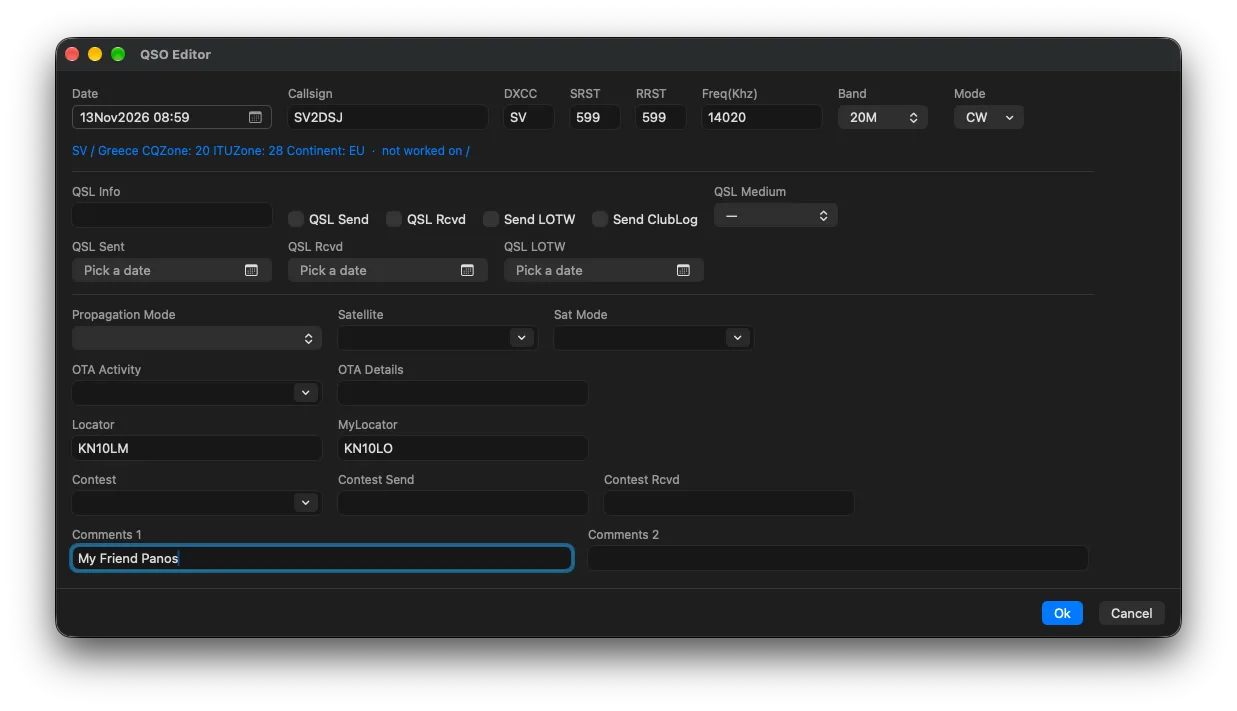
Need more fields? File ▸ Manual QSO Entry opens the full QSO editor. File ▸ Fast QSO Entry opens a small window for quick logging.
4. DX Cluster
DxDozer connects to a DX cluster by itself and picks another node if one stops working. Use the footer button or the DX Cluster menu to connect or disconnect.
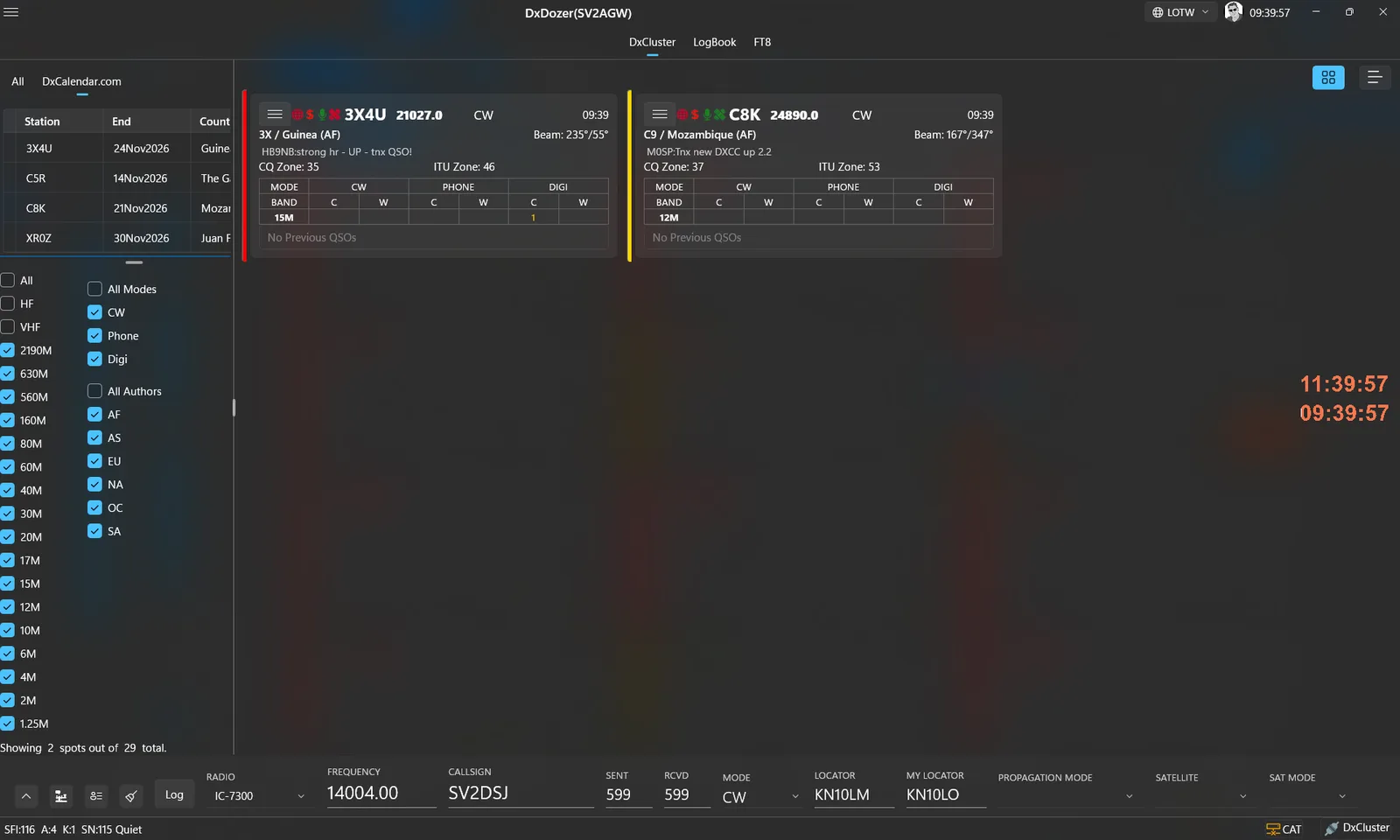
- All: filter spots by band, mode, DX continent and spotter continent (All Modes, All Dx, All Authors). Only LOTW shows only LoTW users. Notifications plays a sound when a new spot appears in the list, even while you are on another tab.
- DxCalendar.com: only the announced DXpeditions.
- Hide duplicates (both tabs) keeps the newest spot of each station on the same frequency.
- Switch between cards and list with the buttons at the top right.
Each spot shows the country, beam heading and what you have worked (W) or confirmed (C) per band and mode. Click the frequency to tune your radio. Right-click for more: DXCC status, QRZ, LoTW and OQRS check, map, send to the QSO bar.
To post a spot: DX Cluster ▸ Send DX Spot.
DXCC status (right-click a spot, or click Previous QSOs) shows what you have worked (W) and confirmed (C) with that country on every band and mode, and your previous QSOs with the station, with their QSL and LoTW status.
5. FT8 with WSJT-X
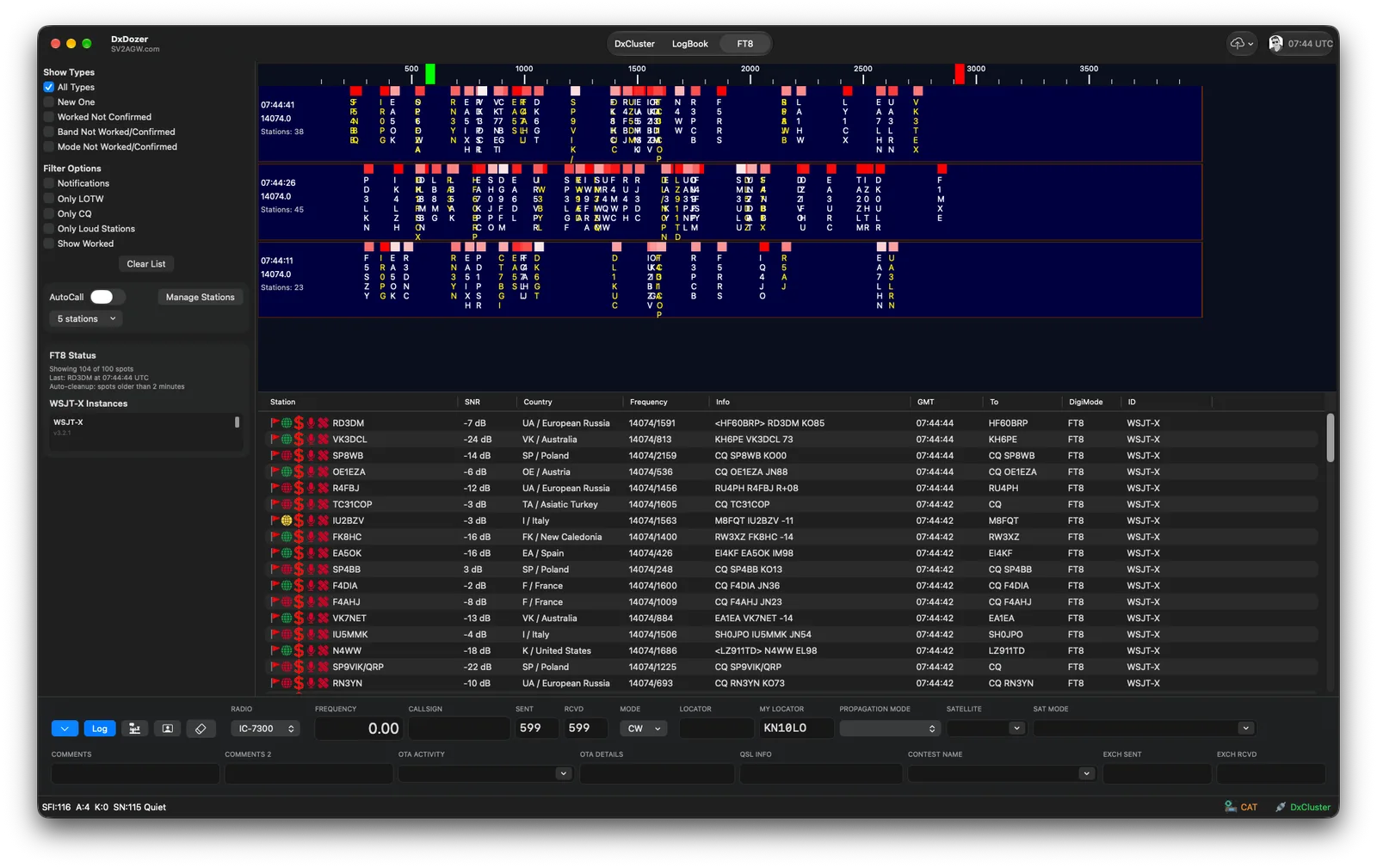
In WSJT-X, Settings ▸ Reporting: UDP Server 127.0.0.1, port 2237, and tick Accept UDP requests. DxDozer then lists every decoded station and logs your FT8 QSOs automatically.
- Show Types and the filter options choose which stations you see (new ones, not worked on this band or mode, only CQ, only LoTW…).
- Notifications plays a sound when a matching station appears.
- Double-click a station and WSJT-X calls it. For a DXpedition in Fox/Hound, set WSJT-X to Hound and double-click the Fox's CQ.
AutoCall
With AutoCall on, DxDozer calls a station from the list as soon as it is heard, unless you already worked it on this band or its country is confirmed there in digital mode. The list comes from DxCalendar.com; add your own calls with Manage Stations.
FT8 keeps working in the background while you use the other tabs.
6. Radio control
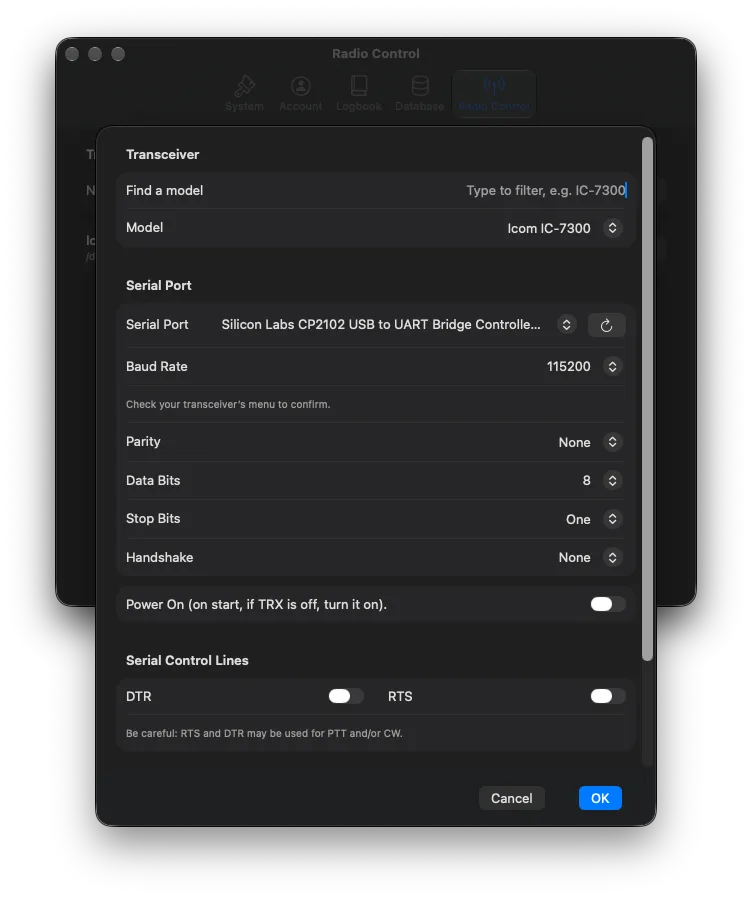
- Settings ▸ Radio Control ▸ Add Radio: choose the model, then the serial port and speed (or a network address).
- Bands: tick the bands the radio covers. Spots go to a radio that has the band.
- Radio ▸ Start CAT, or click CAT in the footer. The same item then reads Stop CAT.
Turn radios on or off from the Radio menu (if the radio supports it).
7. LoTW, ClubLog and QSL cards
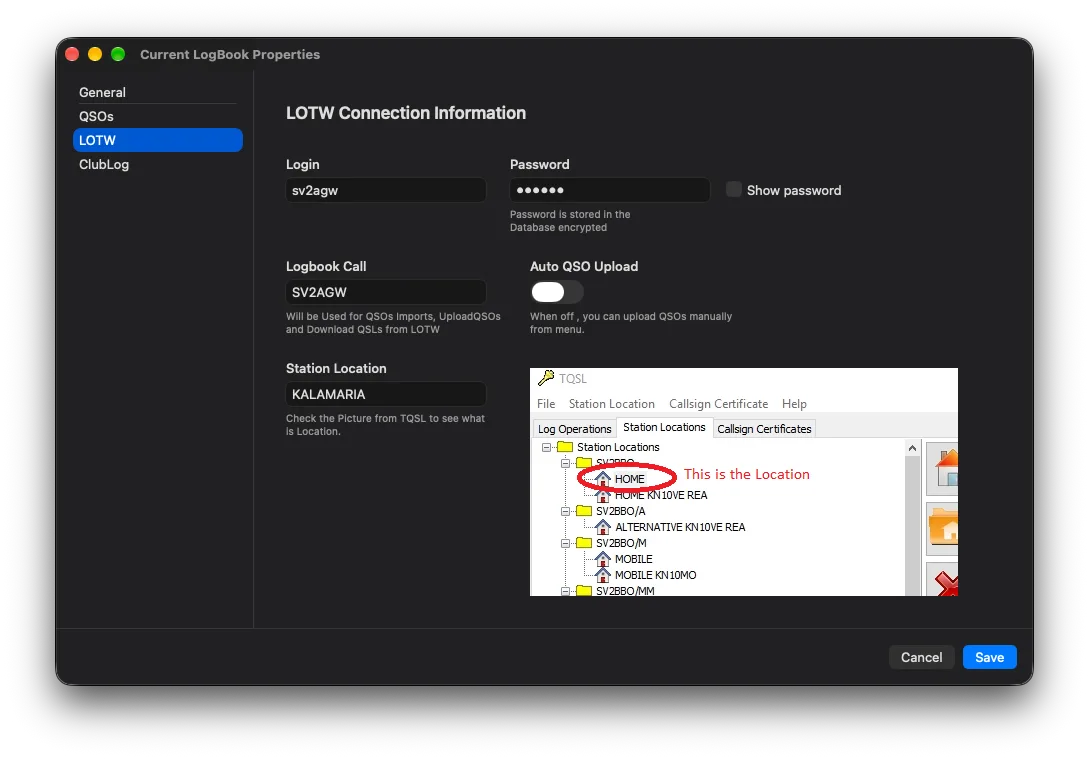
Enter your LoTW and ClubLog logins in LogBook ▸ LogBook Properties. LoTW also needs TQSL installed with your certificate.
- LogBook ▸ Upload QSOs LOTW / Get QSLs From LOTW.
- LogBook ▸ Upload QSOs to ClubLog.
- Auto QSO Upload (in the LoTW properties) sends each new QSO as you log it.
- LogBook ▸ QSL Received: mark paper QSL cards.
8. Awards
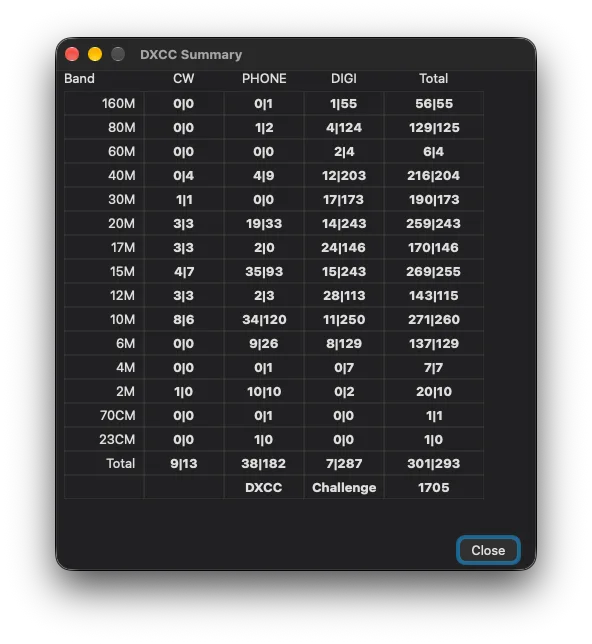
- Awards ▸ DXCC Summary: countries worked and confirmed per band and mode.
- DXCC Summary by Submode: the same per submode (FT8, FT4, SSB…).
- Unconfirmed DXCC by Band and Mode: what is still missing, with the QSOs to chase.
- DXCC Cards to Check: the QSL cards to take for card checking: one per country, band and mode (CW, Phone, Digi) confirmed only by card, not on LoTW.
The last two lists have a Print… button. To keep or send the list as a file, use PDF ▸ Save as PDF in the print dialog (macOS).
9. Import and export
LogBook ▸ LogBook Import and LogBook Export read and write ADIF files. JSON and SQLite import/export will follow.
10. Data updates
DxDozer checks for a new DXCC list and LoTW/OQRS users list at start and every hour, and offers the update. You can also run them yourself from File ▸ Updates (DXCC entities, LoTW/OQRS users, band plan).
11. Settings
- System
- Theme, sounds, default logbook view. On macOS also Glass background with its opacity.
- Account
- Your DxDozer account and subscription.
- Logbook
- The current logbook's properties.
- Database
- SQLite (default). MySQL for advanced users who share a log between computers.
- Radio Control
- Your radios (see Radio control).
12. Help
- No spots
- Check the footer DxCluster button and your filters. DX Cluster ▸ Show Cluster Status shows the node.
- WSJT-X does not answer a double-click
- Tick Accept UDP requests in WSJT-X. Only CQ lines can be answered.
- CAT does not connect
- Check the model, port and speed against the radio's menu, and that no other program holds the port.
Your data is in Documents/DxDozer/Data (File ▸ Data Files).
Still stuck? Contact us or use Help ▸ Report a Bug.